TL;DR — ZBrush System Requirements
ZBrush doesn’t need an extreme GPU, but it does need plenty of RAM, a responsive CPU, and fast storage. For smooth, professional sculpting in 2026, aim for at least 32 GB of RAM, a modern Intel i7/i9 or AMD Ryzen 7/9, and an NVMe SSD. ZBrush stores sculpt data in system memory, so more RAM means higher polygon counts and fewer slowdowns. Laptops work fine if they have enough memory and good cooling, while desktops offer better upgrade options. Build smart, focus on balance, and ZBrush will scale with your creativity.
Best Laptops for ZBrush: ZBrush System Requirements (2026)ZBrush has always played by its own rules. While many 3D applications lean heavily on the GPU, ZBrush focuses on raw sculpting power, responsiveness, and memory. In 2026, that hasn’t changed — but hardware has evolved, workflows have grown heavier, and expectations are higher.
If you’re wondering whether your current setup is enough, planning a new workstation, or choosing a laptop for sculpting, this guide will walk you through what ZBrush actually needs to run smoothly today — without jargon, hype, or wasted budget.
How ZBrush Uses Your Hardware (Plain and Simple)
ZBrush doesn’t behave like most 3D software. It doesn’t rely on real-time ray tracing or massive GPU compute. Instead, it stores sculpted geometry directly in system RAM and prioritizes CPU responsiveness.
That means:
- More RAM = higher polygon counts
- Faster CPU cores = smoother brush strokes
- SSD speed = fewer freezes and faster saves
- GPU power = helpful, but not the star of the show
Understanding this changes how you should spend your money.
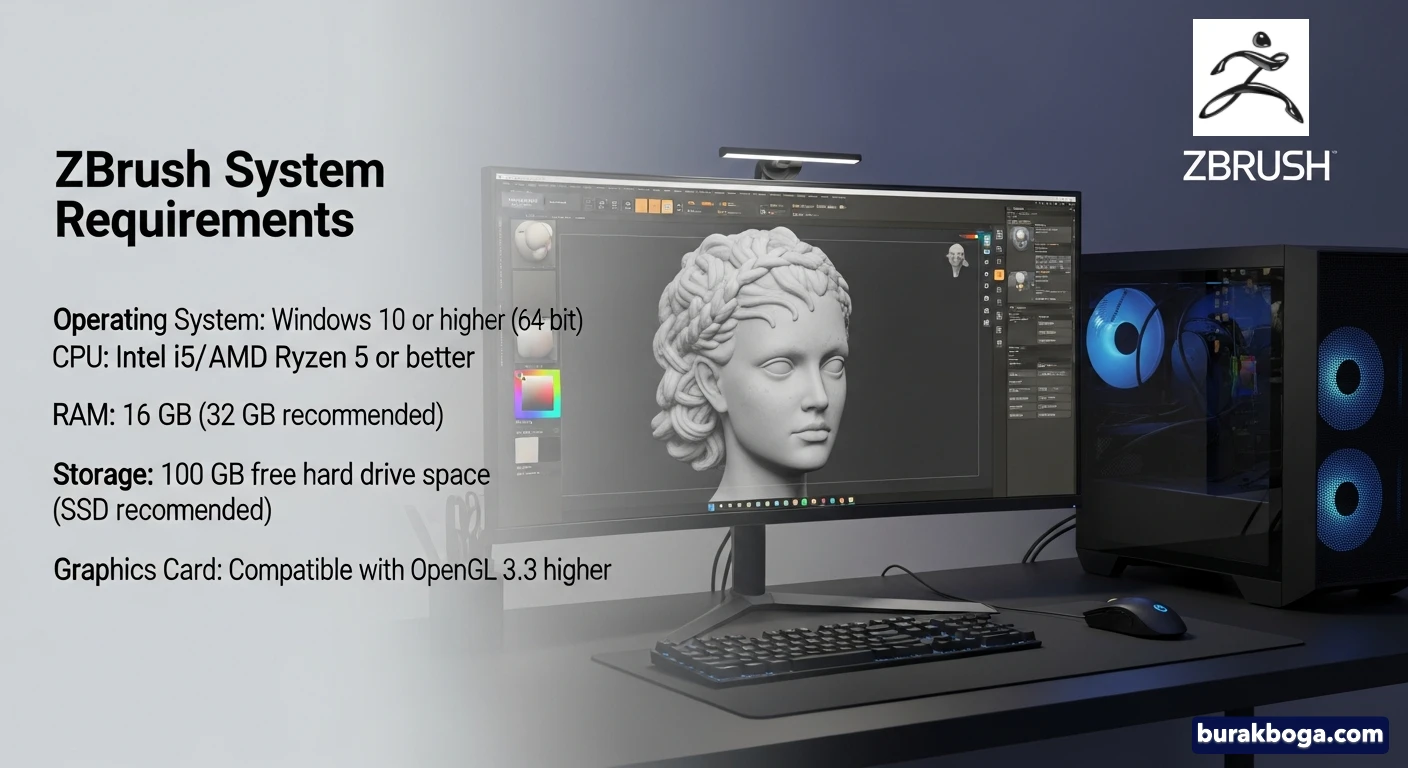
Minimum System Requirements (Will It Run?)
These specs are enough to launch ZBrush and handle light sculpting or learning projects. They’re not ideal for professional work, but they work.
| Component | Minimum Requirement |
|---|---|
| Operating System | Windows 10 (64-bit) or macOS 11+ |
| CPU | 64-bit processor with SSE4 support |
| RAM | 8 GB (16 GB strongly advised) |
| Storage | 20–100 GB free space |
| Graphics | OpenGL 3.3 compatible GPU |
| Display | 1920 × 1080 resolution |
| Input | Pen tablet recommended |
If your system matches this, ZBrush will open — but heavy meshes will push it quickly.
Recommended System Requirements (The Sweet Spot)
For freelancers, character artists, game artists, and anyone sculpting daily, this is where ZBrush starts to feel genuinely comfortable.
| Component | Recommended Setup |
|---|---|
| Operating System | Windows 11 or macOS 12–14 |
| CPU | Intel Core i7 / i9 or AMD Ryzen 7 / 9 |
| RAM | 32 GB (64 GB for large scenes) |
| Storage | 1 TB NVMe SSD |
| Graphics | Modern GPU with 8 GB VRAM |
| Display | 1440p or 4K monitor |
| Tablet | Wacom, Huion, or equivalent |
This setup handles multi-million polygon sculpts without constant slowdowns and leaves room for future growth.
Professional & Studio-Level Workstations
If you’re working on film assets, high-end collectibles, or massive concept sculpts, ZBrush scales beautifully with better hardware — especially memory.
Ideal specs for heavy production:
- 64–128 GB RAM
- High-clock CPU with strong single-core performance
- Dedicated NVMe drive for scratch and project files
- Reliable pen display or tablet
- GPU chosen more for your other 3D tools than ZBrush itself
ZBrush doesn’t demand fascinating hardware — it rewards balanced systems.
Why RAM Matters More Than Anything Else
ZBrush stores geometry differently than most 3D apps. Instead of pushing data to the GPU, it keeps sculpt data in main system memory.
In real terms:
- 16 GB RAM → small to mid-size projects
- 32 GB RAM → professional comfort zone
- 64+ GB RAM → freedom to sculpt without fear
If ZBrush ever feels like it’s “hitting a wall,” it’s usually memory — not your GPU.
Do You Need a Powerful GPU for ZBrush?
Short answer: no, not for sculpting alone.
A decent GPU helps with:
- Smooth viewport navigation
- High-resolution monitors
- Other apps like Unreal Engine or Blender
But ZBrush itself won’t suddenly sculpt faster with a flagship GPU. If your budget is limited, prioritize RAM and SSD speed first.
Storage: The Silent Performance Booster
ZBrush relies heavily on temporary files when working with dense meshes. Slow storage causes stutters, delays, and long save times.
Best practice:
- NVMe SSD for OS + ZBrush
- Plenty of free disk space
- Separate drive for backups if possible
An SSD upgrade often feels like a bigger improvement than a CPU upgrade.
ZBrush on Laptops vs Desktops
Desktops
- Best value for RAM capacity
- Easier upgrades
- Ideal for full-time sculptors
Laptops
- Perfectly viable in 2026
- Choose models with upgradeable RAM
- Avoid thin designs that throttle under load
If mobility matters, a workstation-class laptop with 32–64 GB RAM works very well.
ZBrush for iPad (Quick Note)
ZBrush is now part of a connected ecosystem that includes iPad. The iPad version is excellent for sketching, concept sculpting, and early forms, especially when paired with Apple Pencil.
For best results:
- Modern iPadOS
- A-series or M-series chip
- Plenty of internal storage
Think of it as a creative extension, not a full desktop replacement.
Simple Buying Checklist
Before you buy or upgrade, check this list:
- ✔ 64-bit OS (Windows or macOS)
- ✔ At least 32 GB RAM
- ✔ NVMe SSD with free space
- ✔ Strong single-core CPU
- ✔ Reliable pen tablet
- ✔ Comfortable monitor resolution
If you hit all of these, ZBrush will feel fast and stable.
Final Thoughts
ZBrush doesn’t demand extreme hardware — it rewards smart choices. You don’t need the most expensive GPU on the market, but you do need enough memory, fast storage, and a responsive processor.
Build around those principles, and ZBrush will scale with you for years.
Whether you’re sculpting your first character or pushing cinematic-level detail, the right setup lets you focus on creativity — not limitations.
How to Choose the Right System for ZBrush in 2026
Time needed: 10 minutes
This guide explains how to choose the right computer setup for ZBrush in 2026, focusing on real sculpting performance, stability, and long-term usability.
- Check Your Operating System and Compatibility
Make sure your computer is running a supported 64-bit version of Windows or macOS. ZBrush works best on modern operating systems with updated graphics drivers and proper OpenGL support. This ensures stability and prevents unexpected crashes during sculpting.
- Prioritize RAM, CPU, and Storage
Choose a system with enough system memory and a fast processor. ZBrush relies heavily on RAM for handling high polygon counts and benefits from strong single-core CPU performance. Installing ZBrush on a fast NVMe SSD helps keep brushes responsive and file operations smooth.
- Select the Right Extras for a Comfortable Workflow
Use a pressure-sensitive pen tablet for precise sculpting and choose a display with enough resolution to comfortably view fine details. A balanced GPU is enough for ZBrush, while good peripherals improve long sculpting sessions and overall productivity.
FAQs
ZBrush relies much more on the CPU than the GPU. Brush responsiveness, sculpting speed, and overall performance depend mainly on how fast your processor is and how much system memory you have. The GPU helps with viewport display, but it’s not the main driver of sculpting performance.
ZBrush can run on 16 GB of RAM, but 32 GB is a much more comfortable starting point for most artists. If you work with very high-resolution models or multiple subtools, having 64 GB or more gives you extra breathing room and fewer slowdowns.
Yes, absolutely. Many artists use ZBrush on laptops every day. The key is choosing a laptop with enough RAM, a fast SSD, and a processor that doesn’t throttle under load. You don’t need a top-tier GPU, but good cooling and upgradeable memory make a big difference.
Yes, ZBrush runs well on modern Macs, including Apple Silicon models. As long as you’re using a supported macOS version and have enough RAM, performance is solid and stable for both learning and professional work.