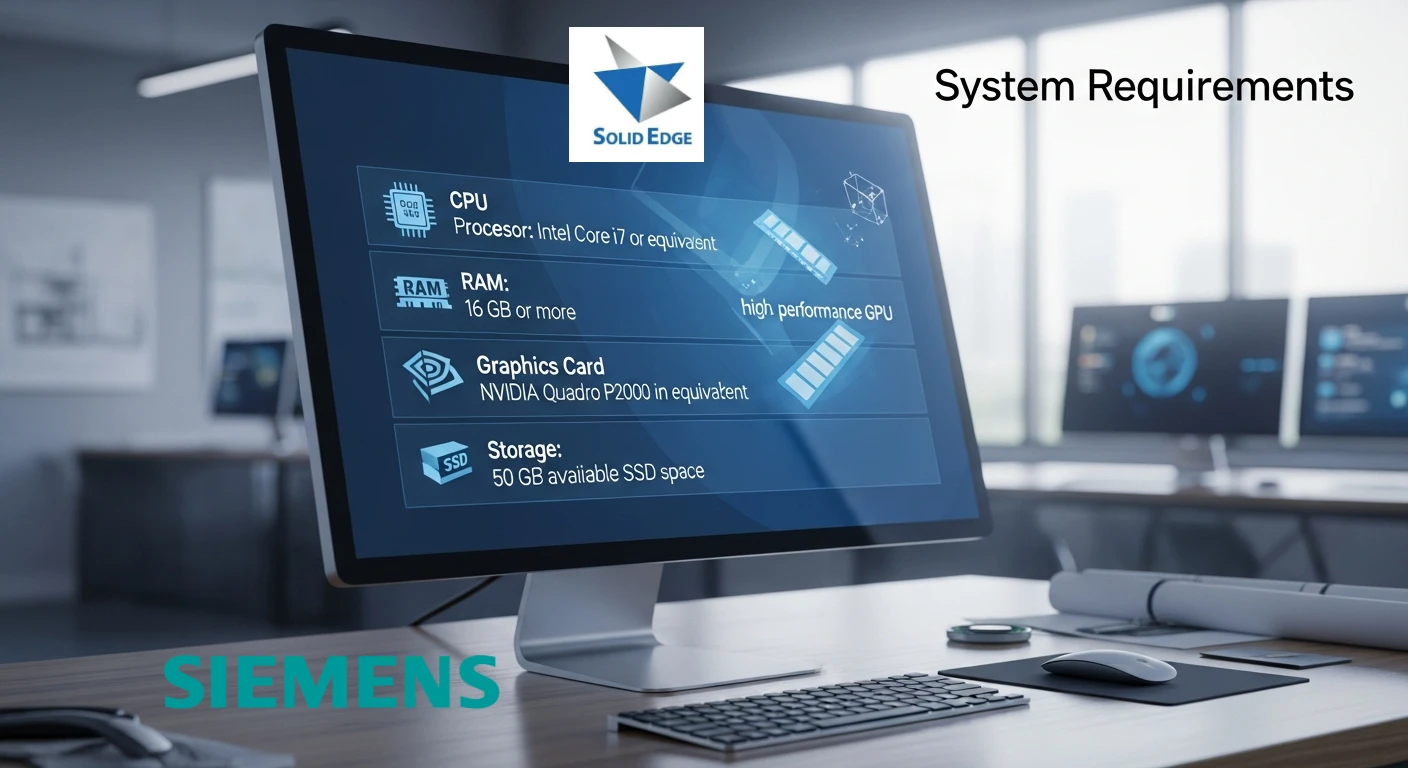
Choosing the right computer for Solid Edge can feel a bit overwhelming, especially with all the hardware options out there. Whether you’re designing simple mechanical parts or handling massive assemblies, the wrong setup can slow you down fast. This guide breaks everything into plain language so you know exactly what to look for — no guesswork, no surprises.
Solid Edge runs best on a balanced system: strong single-core performance, enough memory to breathe, and a dependable professional GPU. Below, you’ll find a clear breakdown of what’s considered the minimum, what most users should aim for, and what power-hungry workloads truly require.
TL;DR — System Requirements for Solid Edge
Solid Edge runs best on a system with strong single-core CPU performance, fast NVMe storage, and a reliable professional GPU. Minimum specs (16 GB RAM, basic GPU, modern 64-bit CPU) are fine for small projects, but most engineers should aim for 32 GB RAM, an i7/Ryzen 7 processor, and an RTX A-series card. For large assemblies, heavy simulation, or rendering, high-end workstations with 64+ GB RAM and powerful GPUs deliver the smoothest experience. The right hardware keeps Solid Edge fast, stable, and ready for demanding engineering work.
Best laptops for Solid Edge: Solid Edge System Requirements (2026)Why the Right Hardware Matters
Solid Edge relies heavily on:
- High single-core CPU speed for modeling
- Reliable and certified graphics drivers
- Fast storage to quickly open and save assemblies
- Enough RAM so the software isn’t constantly swapping to disk
Even a mid-range system can run great if these pieces are well-matched. The goal isn’t just raw power — it’s smooth, stable performance.
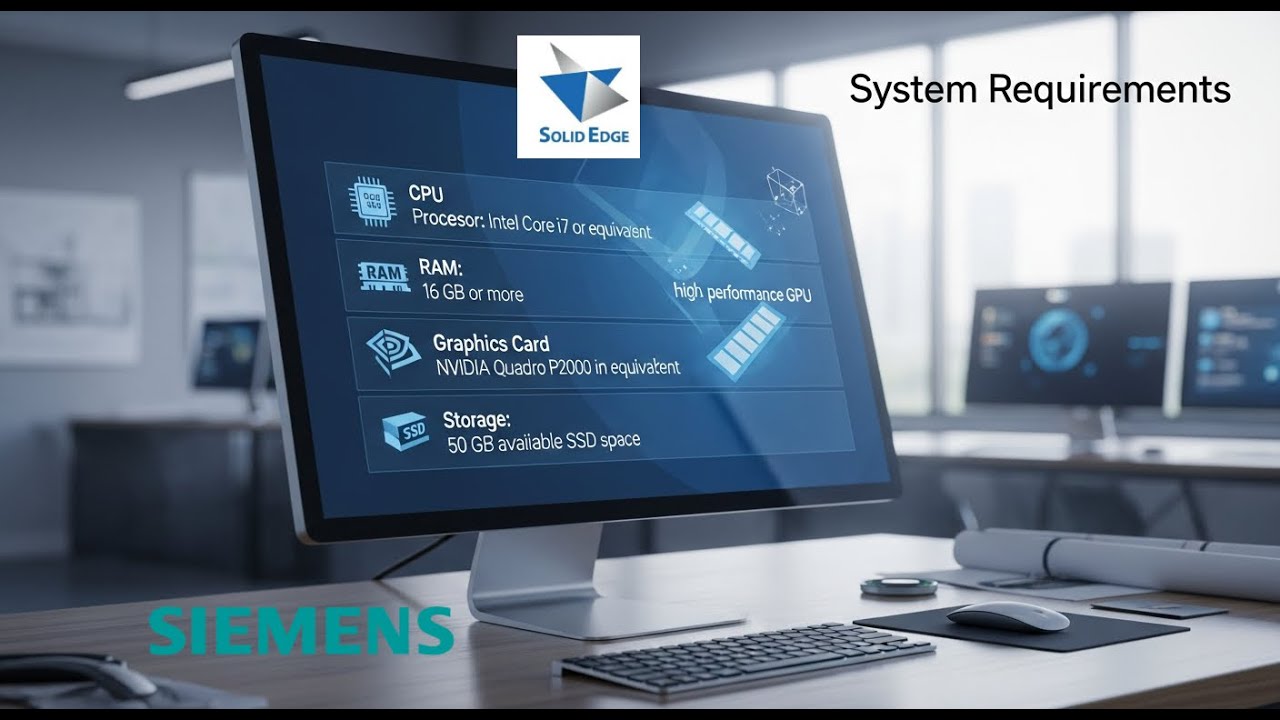
Minimum System Requirements
These specs are the baseline to run Solid Edge without constant freezes or delays. Great for students or light users.
| Component | Minimum Requirement |
|---|---|
| Operating System | Windows 10/11 Pro or Enterprise (64-bit) |
| CPU | 64-bit processor (modern multi-core recommended) |
| RAM | 16 GB (8 GB acceptable only for education versions) |
| Storage | 9–12 GB free space for installation |
| GPU | Basic GPU with OpenGL support (65K colors) |
| Display | 1920×1080 resolution |
If you’re building very small parts or only learning the software, this level is fine. But for serious work, you’ll want more.
Recommended System Requirements for Most Users
This is the sweet spot. It’s ideal for designers working with medium-sized assemblies, sheet metal, surface modeling, motion studies, and daily engineering tasks.
| Component | Recommended Requirement |
|---|---|
| CPU | Intel Core i7 / AMD Ryzen 7 (high single-core speed) |
| RAM | 32 GB |
| GPU | NVIDIA RTX A-series / AMD Radeon Pro with 4–8 GB VRAM |
| Storage | NVMe SSD (OS + project files) |
| Display | Full HD or QHD monitor |
A system like this balances cost and performance very well. Most professionals will be comfortable here for years.
High-End Requirements for Large Assemblies & Heavy Workloads
If you regularly work with:
- Assemblies with thousands of parts
- Rendering and visualization
- Simulation or analysis
- Complex generative design workflows
…then you’ll want something with muscle.
| Component | High-End Requirement |
|---|---|
| CPU | Threadripper Pro, Xeon W, or top-tier Ryzen/Intel |
| RAM | 64 GB or more (ECC preferred) |
| GPU | NVIDIA RTX A4000/A5000/A6000 or AMD equivalent |
| Storage | High-speed NVMe + separate archive drive |
| Monitor | 2K or 4K color-accurate display |
This level of performance ensures you can push Solid Edge without worrying about bottlenecks.
Practical Tips for the Best Performance
1. Use a certified GPU driver
Solid Edge works best with workstation-class GPUs because their drivers are built for stability, not gaming performance. Even if you have a powerful gaming card, a professional card usually delivers fewer visual glitches and more consistent results.
2. Go for NVMe storage
Switching from SATA SSD to NVMe can shave seconds off opening, saving, and regenerating complex assemblies.
3. Don’t underestimate RAM
If your assemblies are growing, upgrading RAM often fixes slowdowns faster than upgrading the CPU.
4. Keep a separate drive for projects
Locating your CAD files on a dedicated SSD or partition helps keep everything organized and responsive.
Example Workstation Configurations
Here are some sample setups that Solid Edge users commonly choose:
Balanced Workstation (Great for Most Engineers)
- Intel Core i7 / Ryzen 7
- 32 GB RAM
- NVIDIA RTX A2000
- 1 TB NVMe SSD
Performance Workstation
- Intel Core i9 / Ryzen 9
- 64 GB RAM
- NVIDIA RTX A4000
- 1–2 TB NVMe + 2 TB HDD backup
Mobility-Focused Laptop
- Intel H-series CPU
- 32 GB RAM
- NVIDIA RTX A1000/A2000 Mobile
- 1 TB NVMe
A well-selected laptop can handle real engineering work, but desktops still offer better thermals and sustained performance.
Comparison Table: Minimum vs Recommended vs High-End
| Feature | Minimum | Recommended | High-End |
|---|---|---|---|
| CPU | Basic 64-bit | i7 / Ryzen 7 | Threadripper / Xeon |
| RAM | 16 GB | 32 GB | 64+ GB |
| GPU | Basic OpenGL | RTX A-series | RTX A5000+ |
| Storage | Normal SSD | NVMe SSD | NVMe + RAID / secondary drive |
| Target User | Students | Professionals | Heavy simulation & large assemblies |
Final Thoughts
Solid Edge doesn’t demand a fortune in hardware, but it definitely rewards thoughtful choices. If you’re working on real-world engineering projects, aim for the recommended level. If your assemblies are huge or you run advanced simulations, go high-end and you’ll feel the difference instantly.
The right system helps you design faster, avoid software hiccups, and stay productive — which is ultimately what good engineering tools are all about.
FAQs
Solid Edge doesn’t need an extreme workstation to run, but it does appreciate good hardware. Most people get great results with a modern multi-core CPU, 32 GB of RAM, and a fast NVMe SSD. The software will still run on lower specs — like 16 GB of RAM and a basic 64-bit processor — but performance will vary depending on the size of your projects.
For everyday modeling and typical assemblies, a workstation GPU like the NVIDIA RTX A-series or AMD Radeon Pro is the safest choice. These cards have drivers built for CAD work, so they tend to be more stable. You can get by with a consumer GPU for light tasks, but professional cards usually deliver a smoother experience.
Solid Edge is officially supported on Windows 11 Pro and Enterprise. While the Home edition may launch, it’s not guaranteed to behave consistently. If you’re using Solid Edge for work or school, it’s best to stick with the supported versions to avoid unexpected issues.
How to Choose the Right System for Solid Edge?
Time needed: 5 minutes
A quick 3-step guide to help you pick the ideal computer setup for running Solid Edge smoothly and without performance issues.
- Identify Your Workload
Decide whether you work with small parts, medium assemblies, or large simulation-heavy projects. Your workload determines the level of CPU, RAM, and GPU power you need.
- Match Hardware to Performance Needs
Choose the right level of hardware based on your workload:
*Light use → modern CPU, 16 GB RAM, basic GPU
*Professional use → high clock-speed CPU, 32 GB RAM, workstation GPU
*Heavy assemblies → multi-core workstation CPU, 64+ GB RAM, high-end pro GPU - Use Fast Storage and Certified Drivers
Install Solid Edge on an NVMe SSD and use certified graphics drivers to ensure stability, faster file loading, and reliable performance.